GeoDirectory Options – Setup Tutorials
1. Geo Directory Options
More point and click options for GeoDirectory. Show profile tabs by listing owner or non-listing owner. Users can choose any category they want to display.
-
This section introduces additional customization options in GeoDirectory.
-
You can display profile tabs depending on whether the user is a listing owner or not.
-
Users are also able to select any category they wish to display.
2. Required Plugin
Both plugins are required to use GeoDirectory Options correctly. Ensure that these plugins are installed and activated before proceeding with setup.
-
wpapps Press
-
wpapps GeoDirectory Options
3. Basic Setup
The Event Followers feature is a valuable addition designed to help event organizers and website administrators keep track of users who show interest in specific events. As events are published and updated over time, it becomes increasingly important to understand audience engagement and provide users with an easy way to follow events they care about.
This feature allows users to follow an event directly from the event detail page. Once enabled, several widgets become available—such as the Follow Button, Followers Badge, and Followers Listing—which together enhance user interaction and provide clear visibility into follower activity. When a user follows an event, the system instantly records their action and displays helpful visual indicators, such as the number of followers or a list of users who have subscribed.
In addition to improving user engagement, Event Followers also benefit administrators by offering a simple way to monitor interest levels across different events. With these tools, website owners can better understand audience preferences, adjust event content, or even tailor marketing efforts based on follower activity.
By integrating the Event Followers functionality, GeoDirectory-powered websites can offer a more interactive and dynamic experience—encouraging user participation, strengthening community connections, and improving overall event management.
4. Enable Event Followers
-
Open your WordPress Dashboard.
-
Navigate to WPApps → GeoDirectory → Settings.
-
In the GeoDirectory settings panel, look for the option related to Listing Display.
-
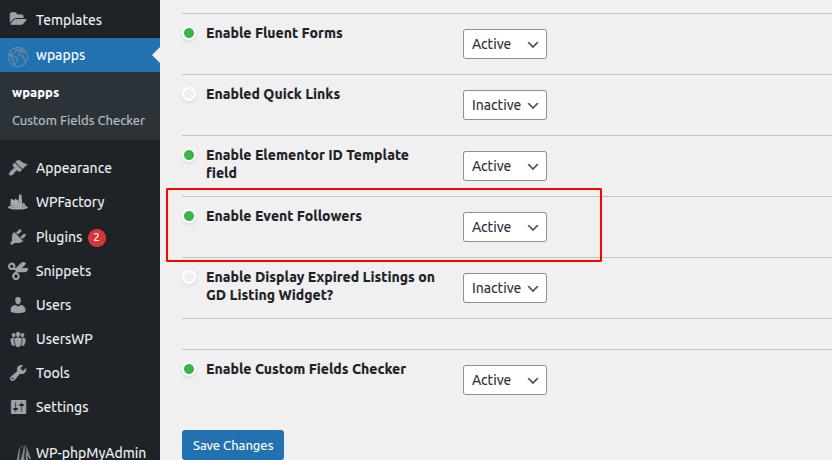
Enable the setting “Enable Event Followers.”
5. Event Follow Button Widget
-
Add the Widget
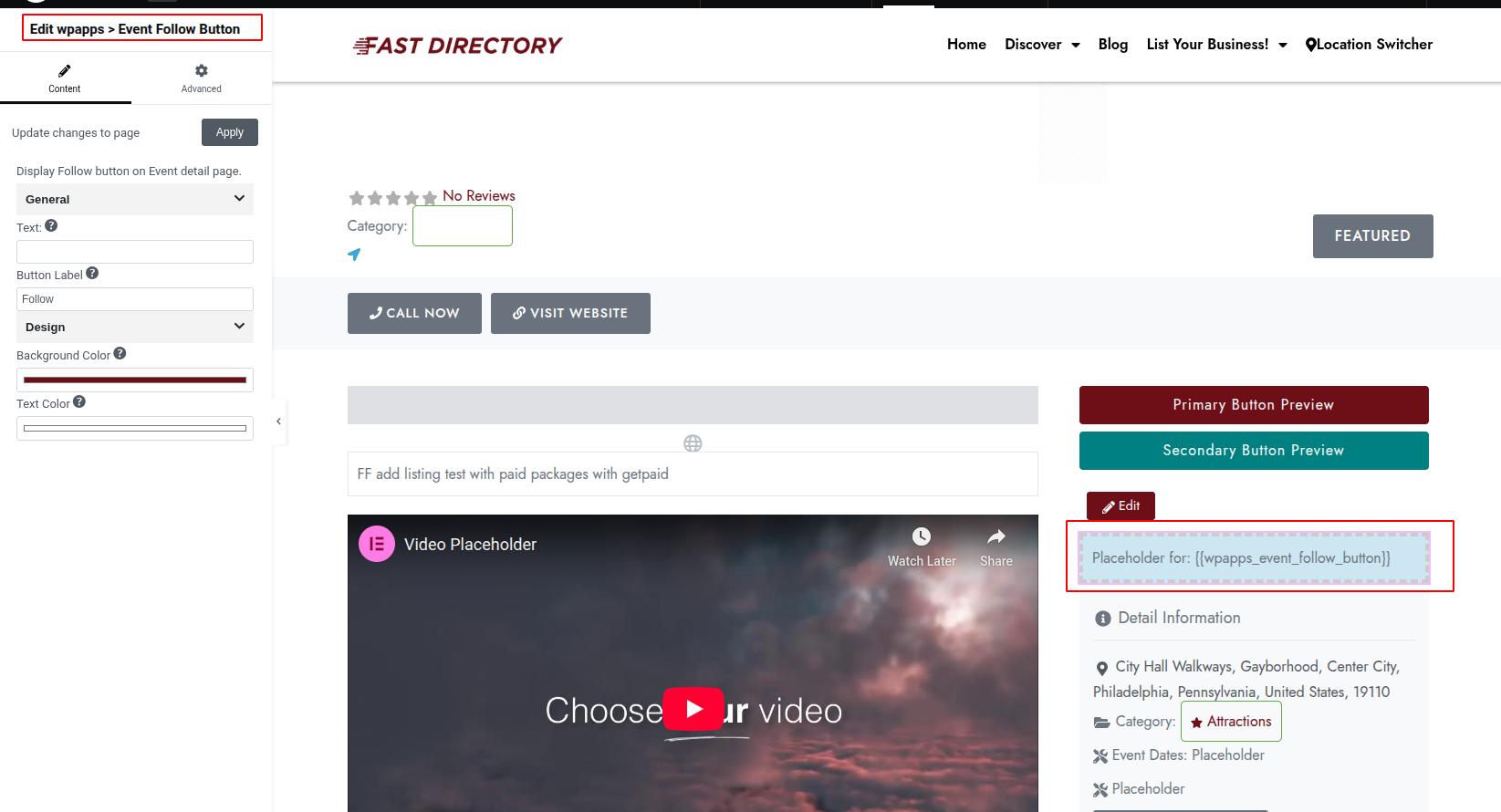
Open your page editor. Add the widget wpapps → Event Follow Button.
-
What It Looks Like
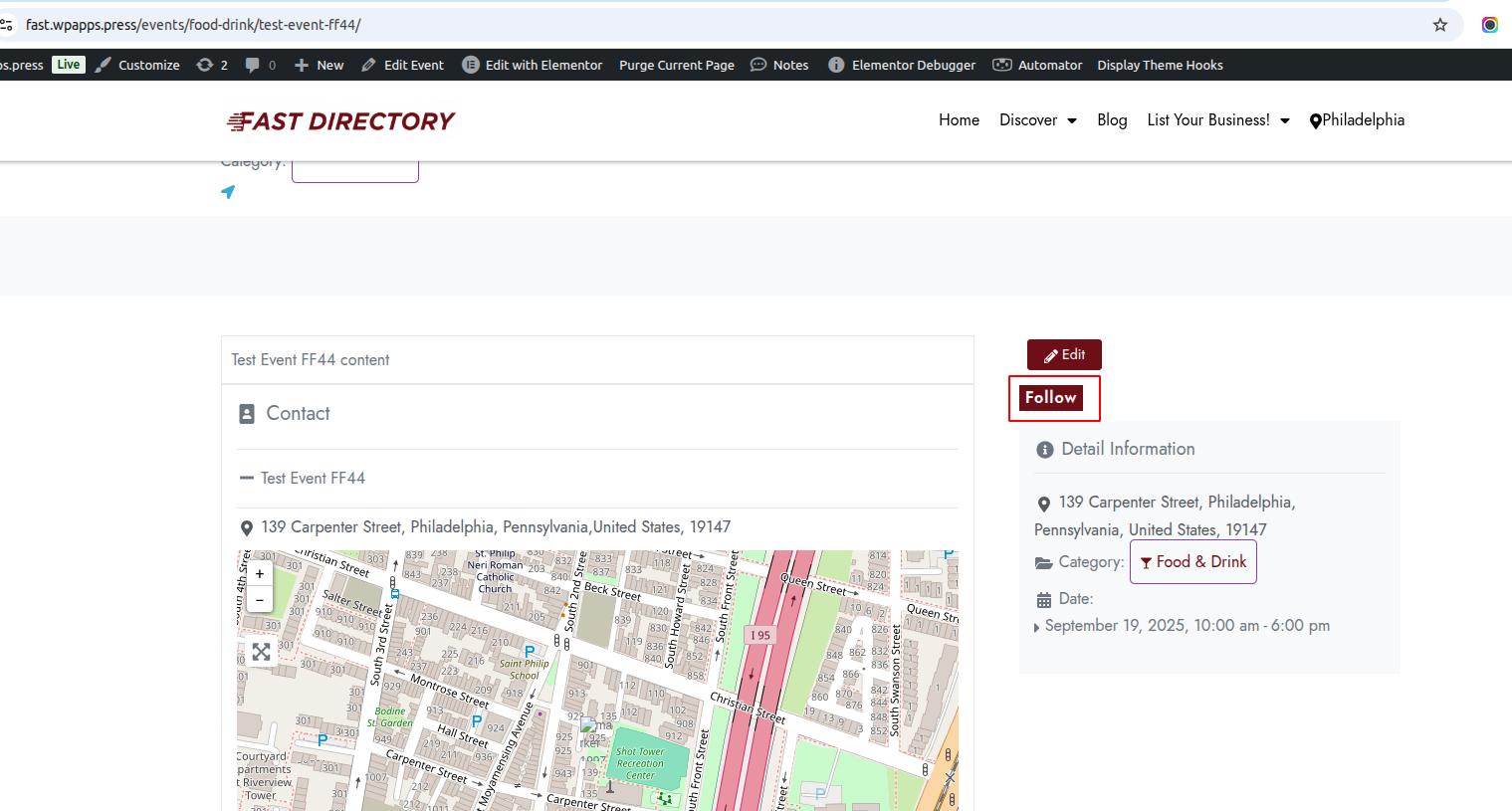
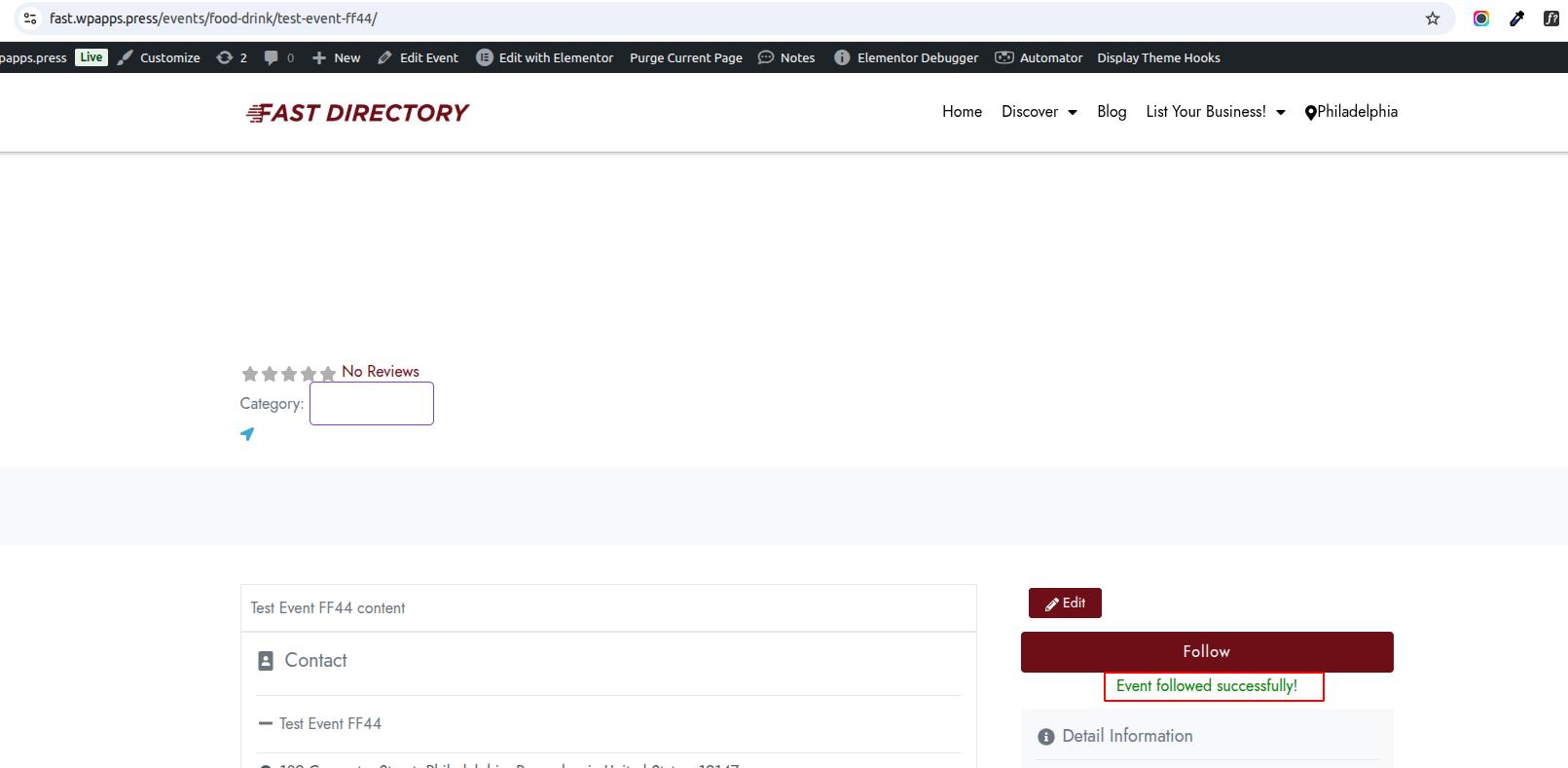
The widget will display a “Follow” button on your event detail page.
-
After Clicking the Button
When a user clicks Follow, a confirmation message will appear: “Event followed successfully.” This confirms that the user has successfully followed the event.
6. Event Followers Badge Widget
-
Add the Widget
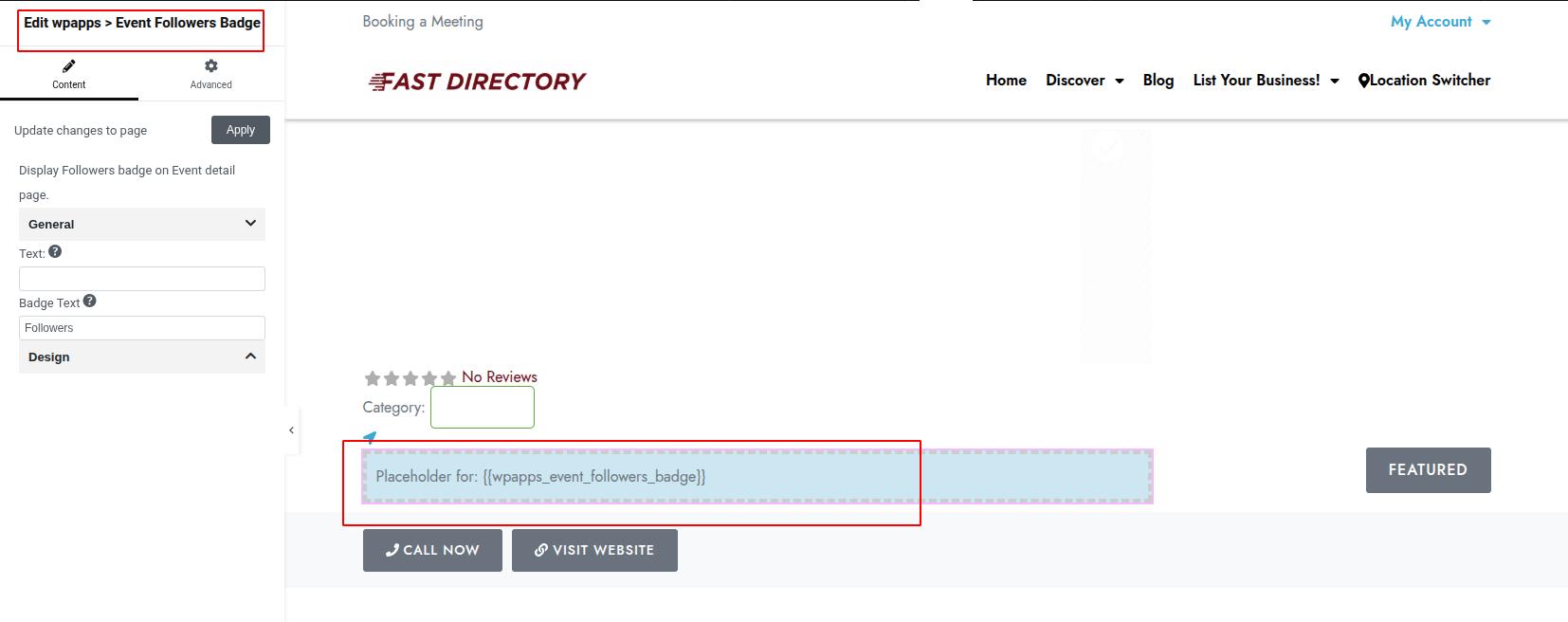
In your page editor, add the widget WPApps → Event Followers Badge.
-
What It Looks Like
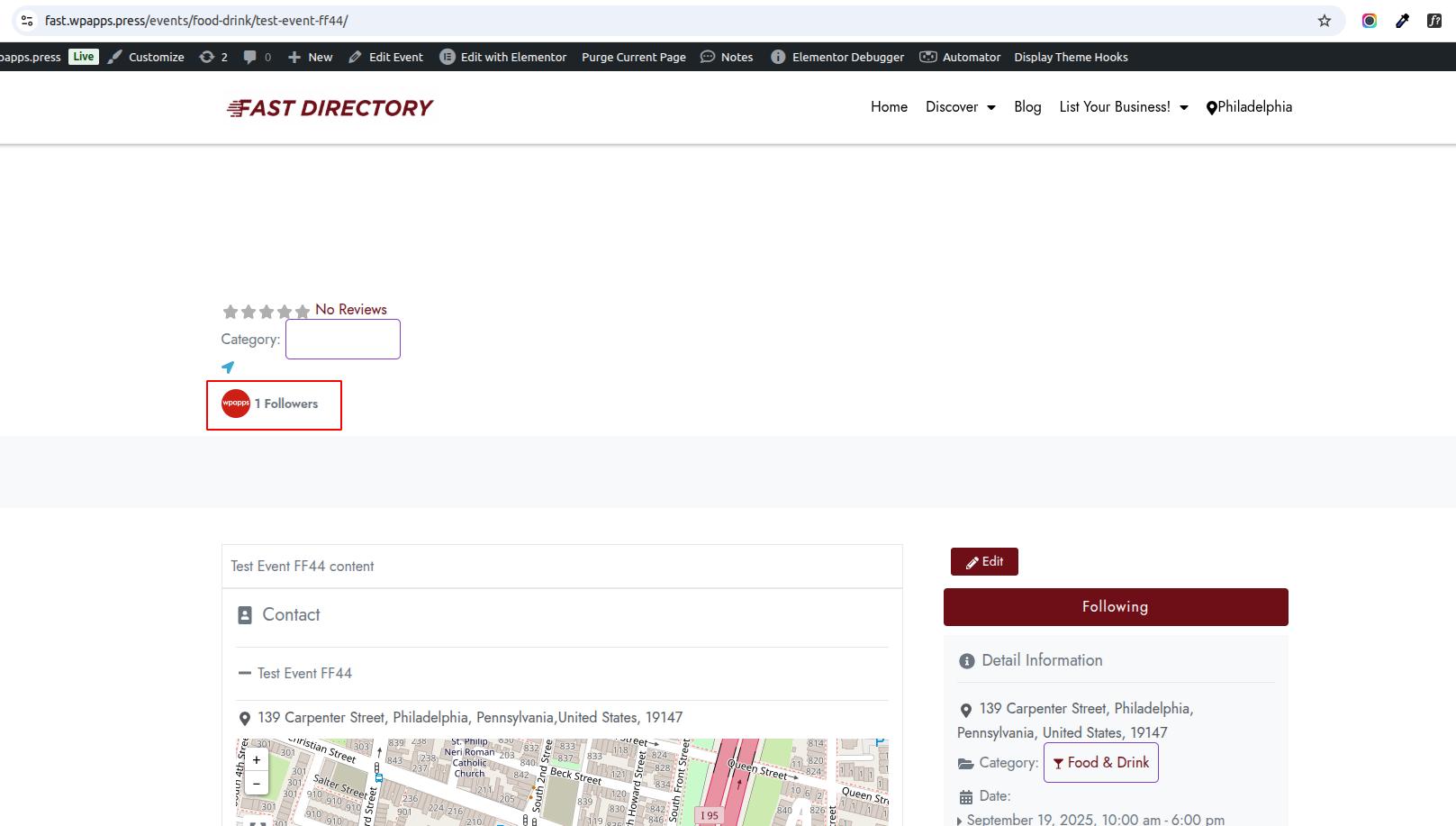
A badge will appear showing the total number of followers for the event.
7. Event Followers Listing Widget
-
Add the Widget
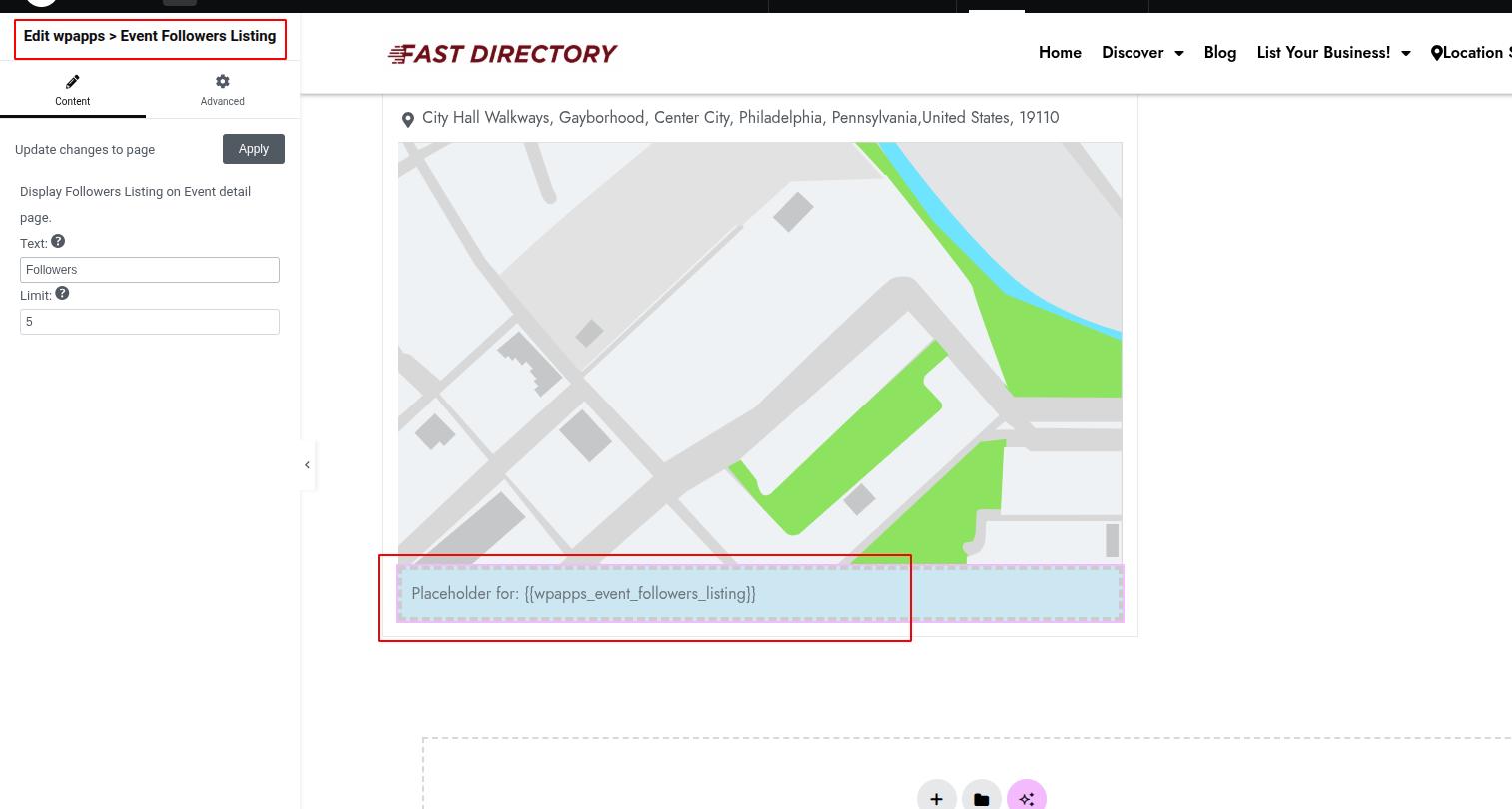
In your page editor, add the widget WPApps → Event Followers Listing.
-
What It Looks Like
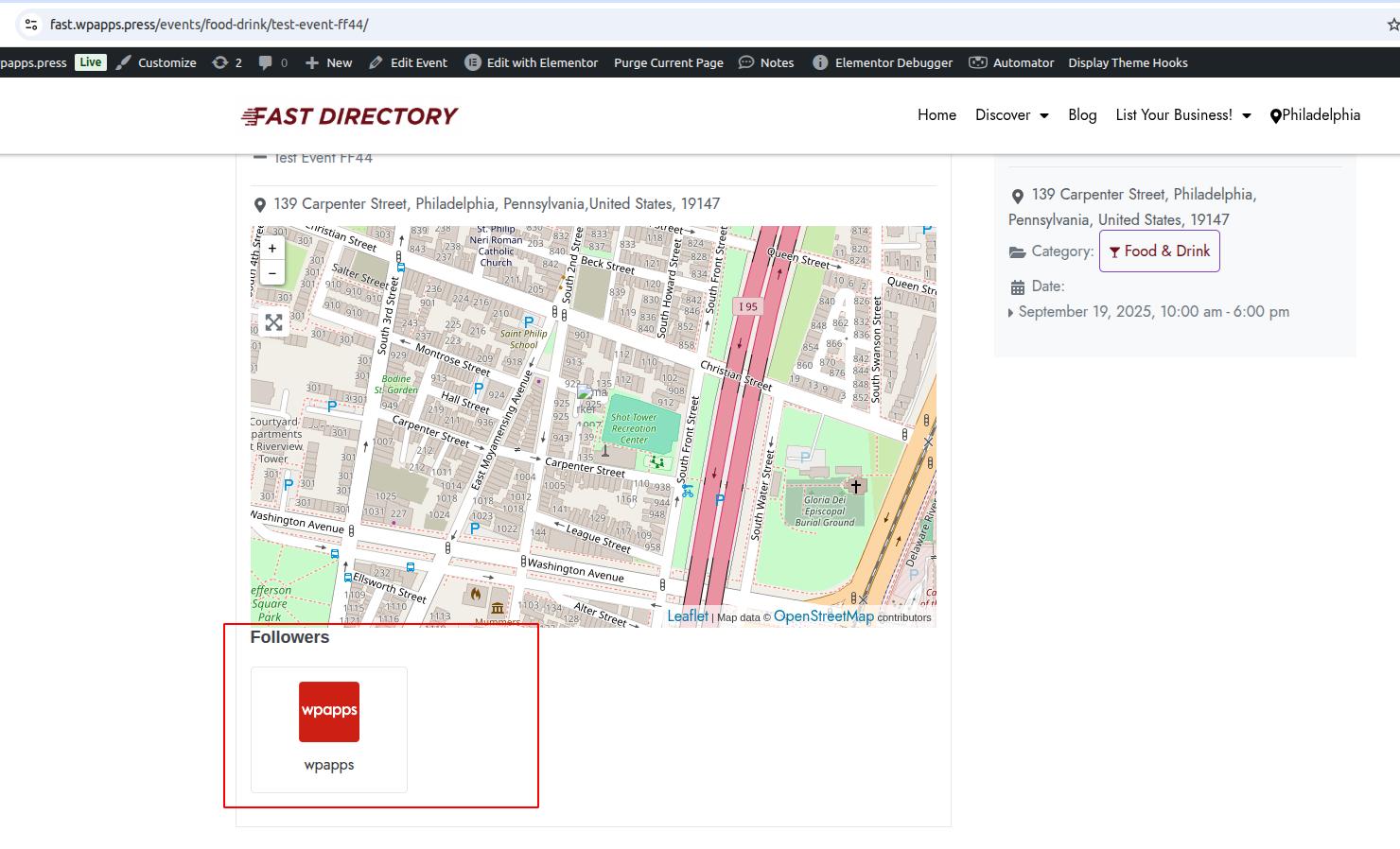
A list will be displayed showing the followers’ profile images and names.